Turn Team Input into One Deck
Invite teammates to a shared project where everyone adds their notes, research, and files. Turn it all into one presentation for your next team review or client meeting, instead of chasing updates from each person.
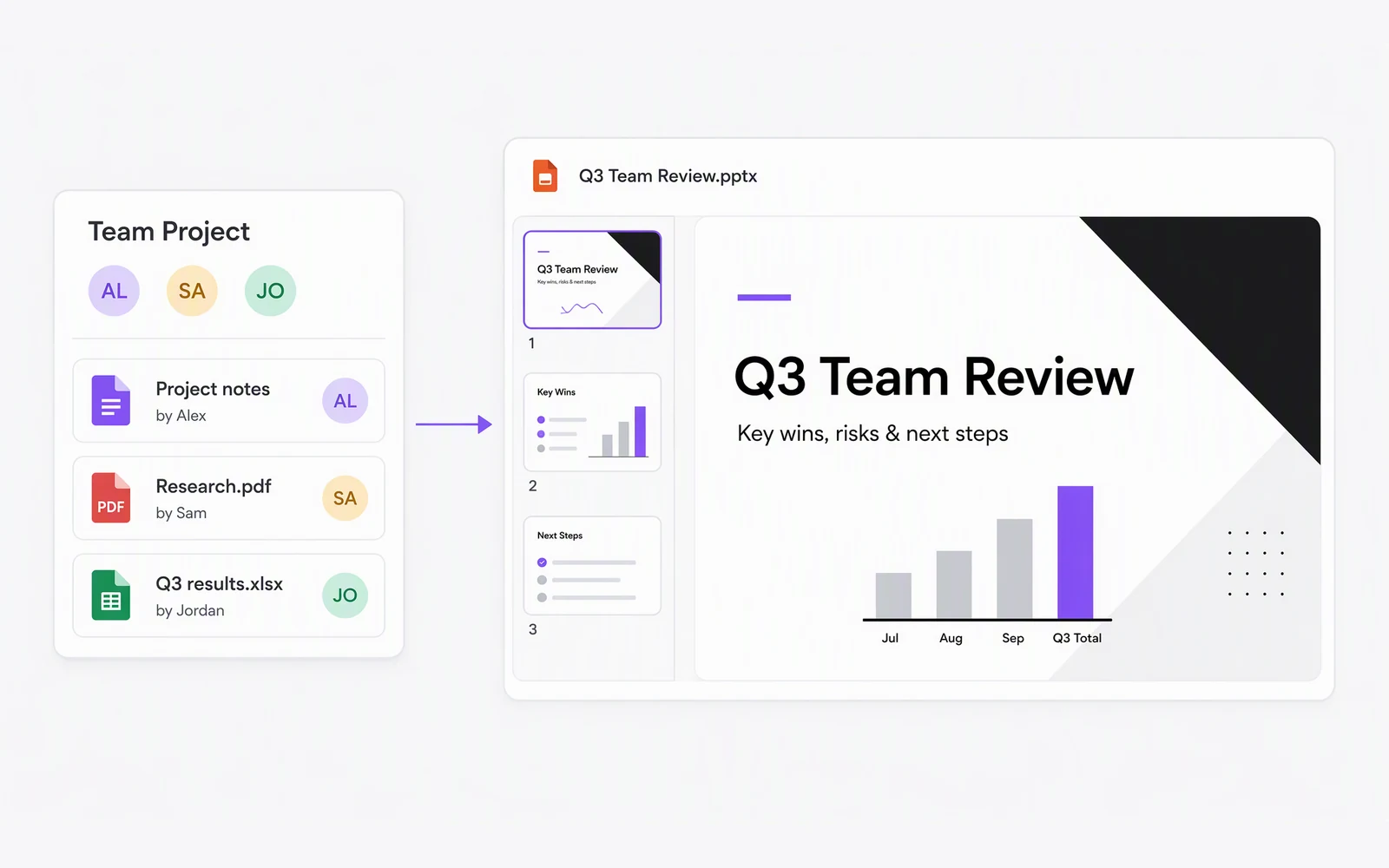
Turn your team's notes, files, and shared sources into polished pitches, reports, and project updates with an AI slides generator that keeps you in control. Approve the outline first, then refine every slide together.
Create Slides NowInvite teammates to a shared project where everyone adds their notes, research, and files. Turn it all into one presentation for your next team review or client meeting, instead of chasing updates from each person.
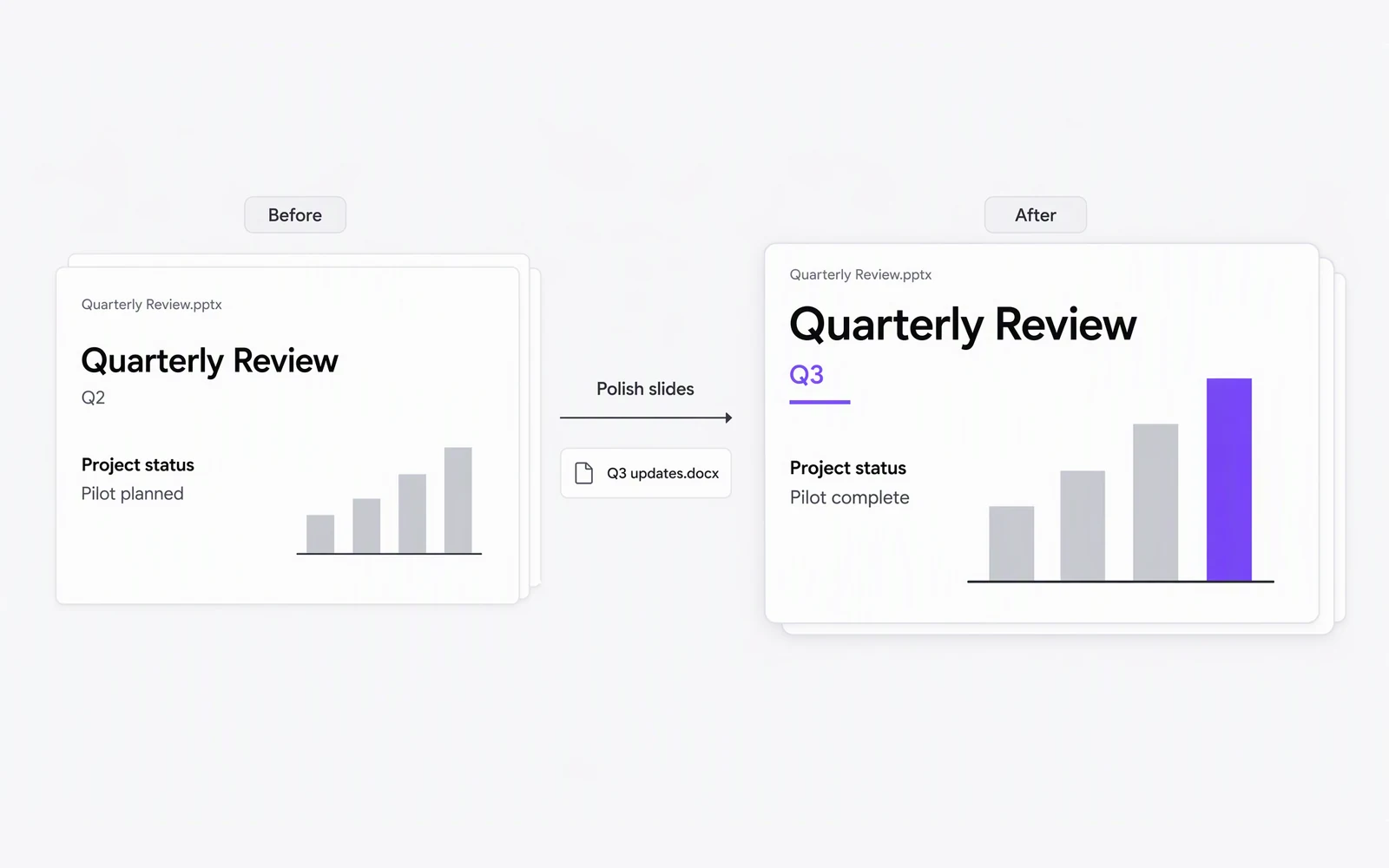
Have a quarterly review or client template you reuse every month? Upload the existing deck, swap in new content, and polish the layout without rebuilding it from scratch.
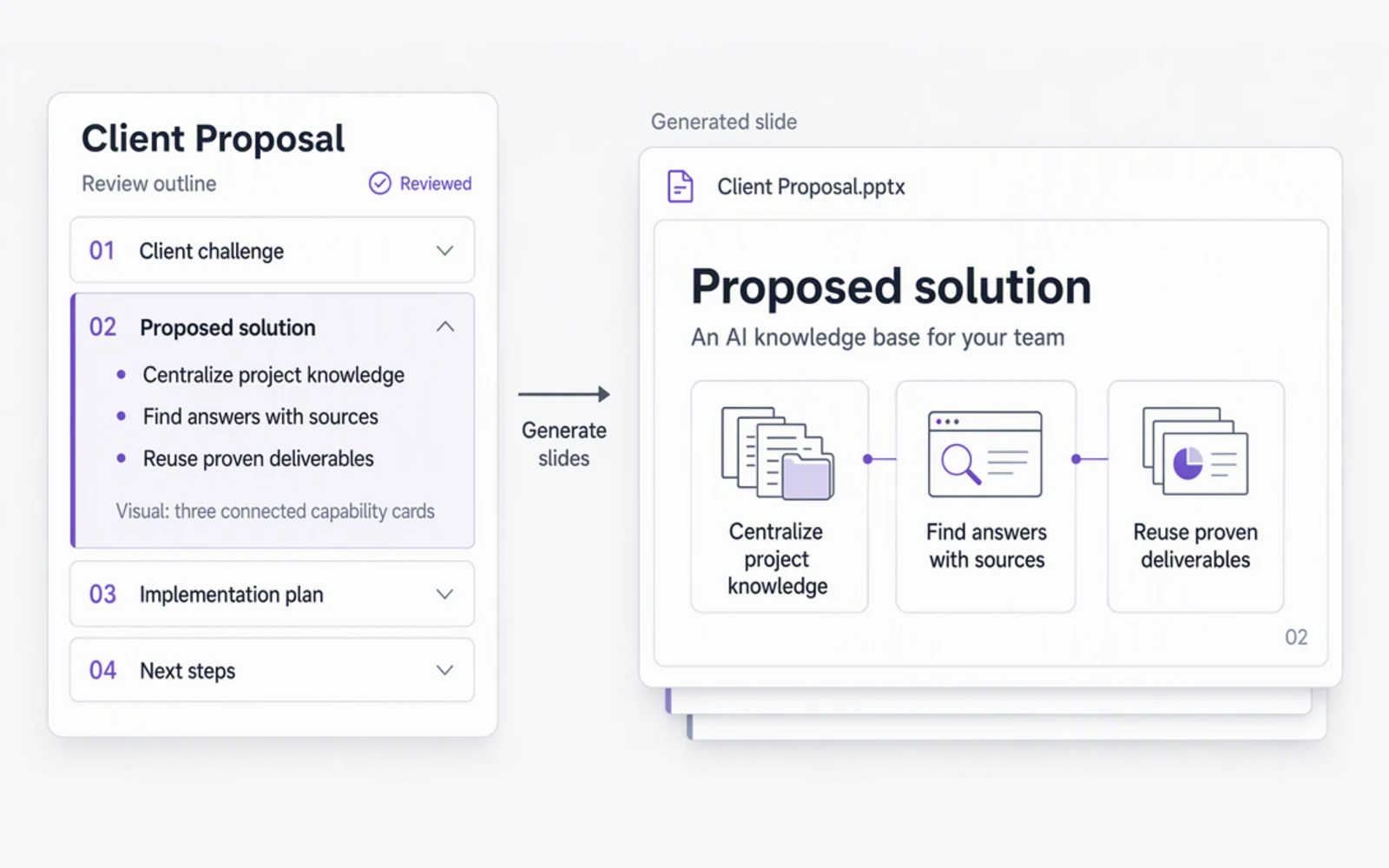
Lock in your story before any slide is designed. Review and adjust a detailed outline for your pitch, then generate slides that follow the flow you approved.
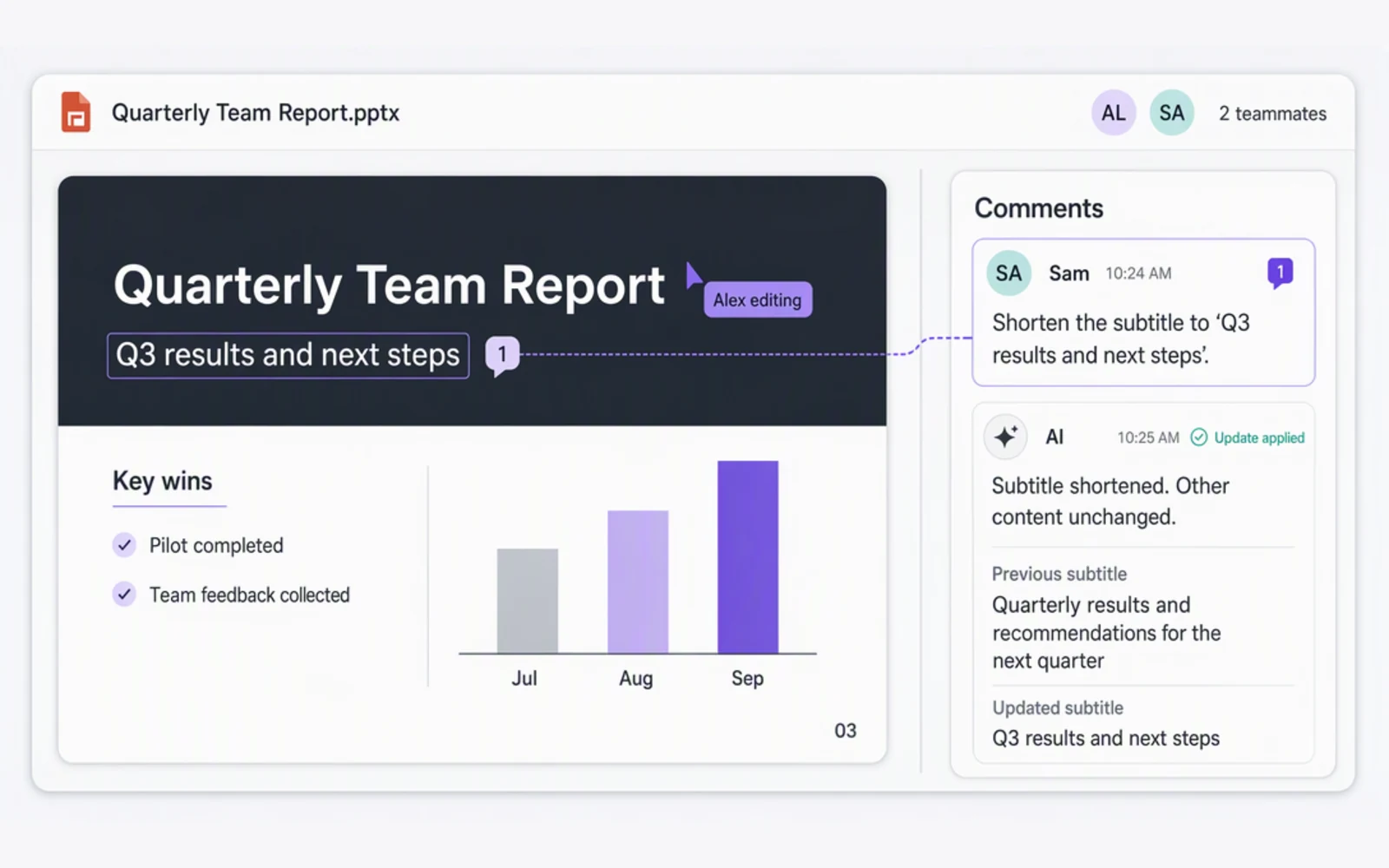
Board reports and proposals rarely come from one person. Edit slides side by side with teammates, or leave a comment on any page and AI makes the change for you.
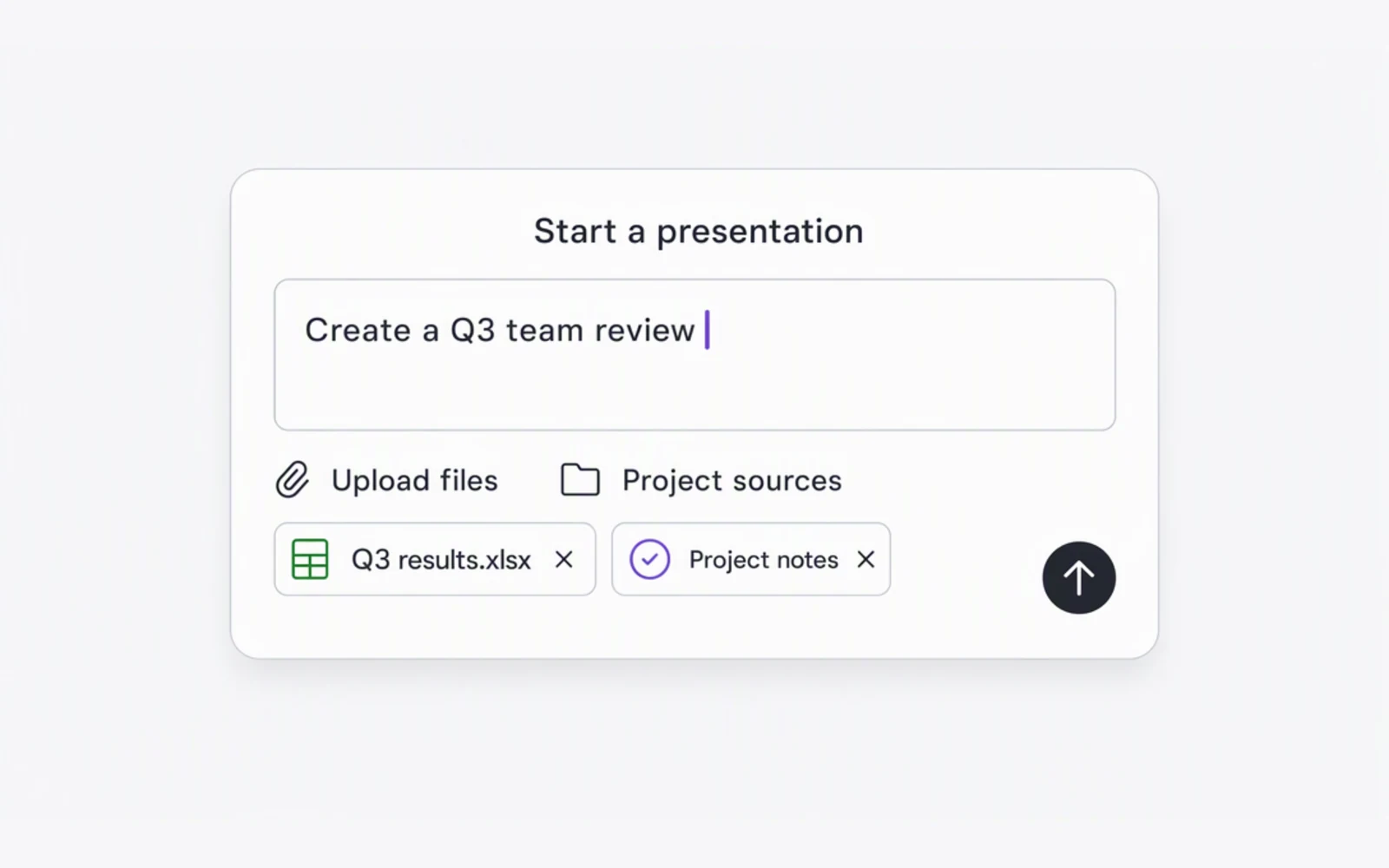
Describe your topic, upload a file, or pick the notes and docs your team already shares in a project. Invite teammates to add their input before you start.
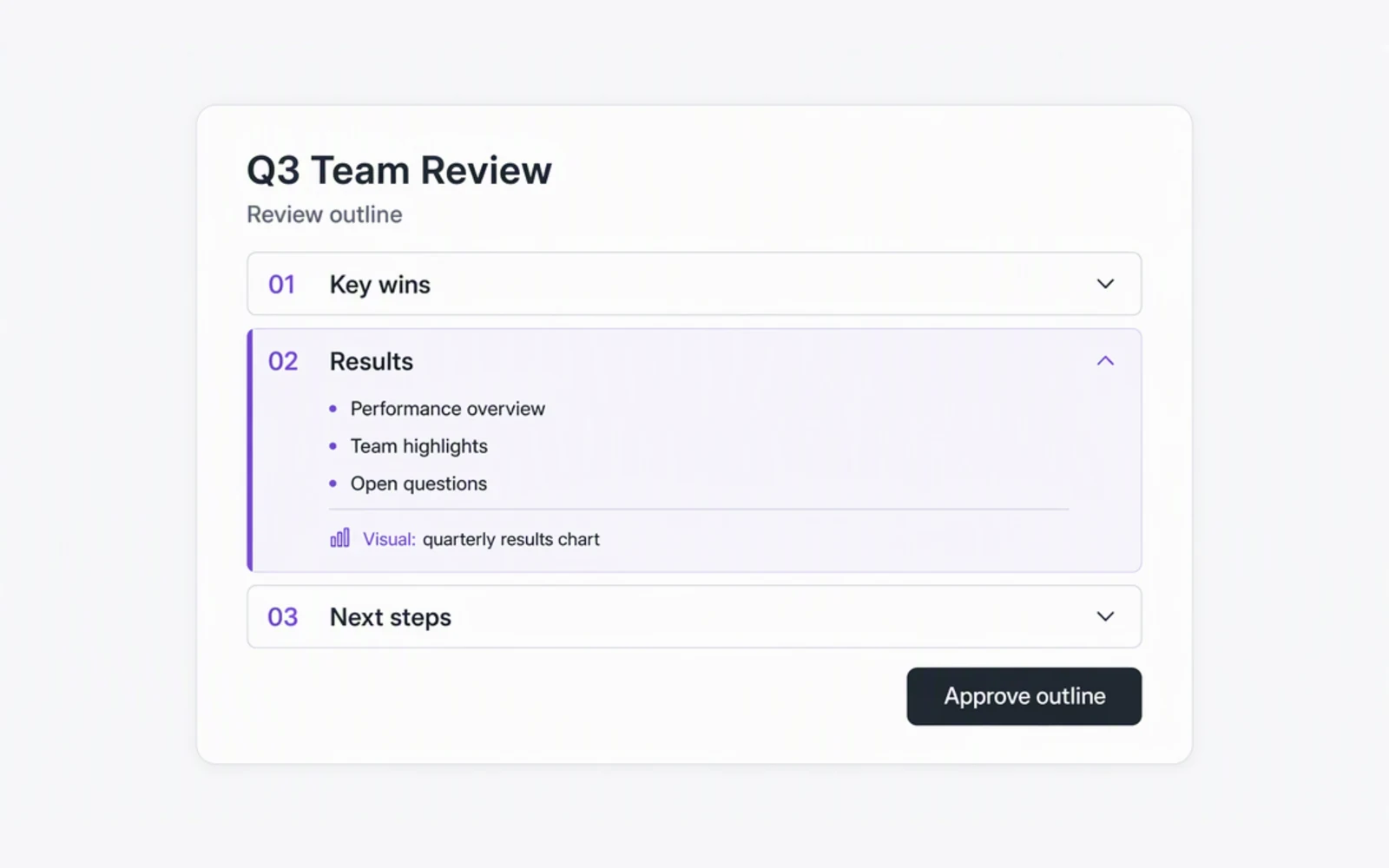
Read through a detailed outline of every slide and ask AI in the chat to adjust it until the story flows. Approve it before any design begins.
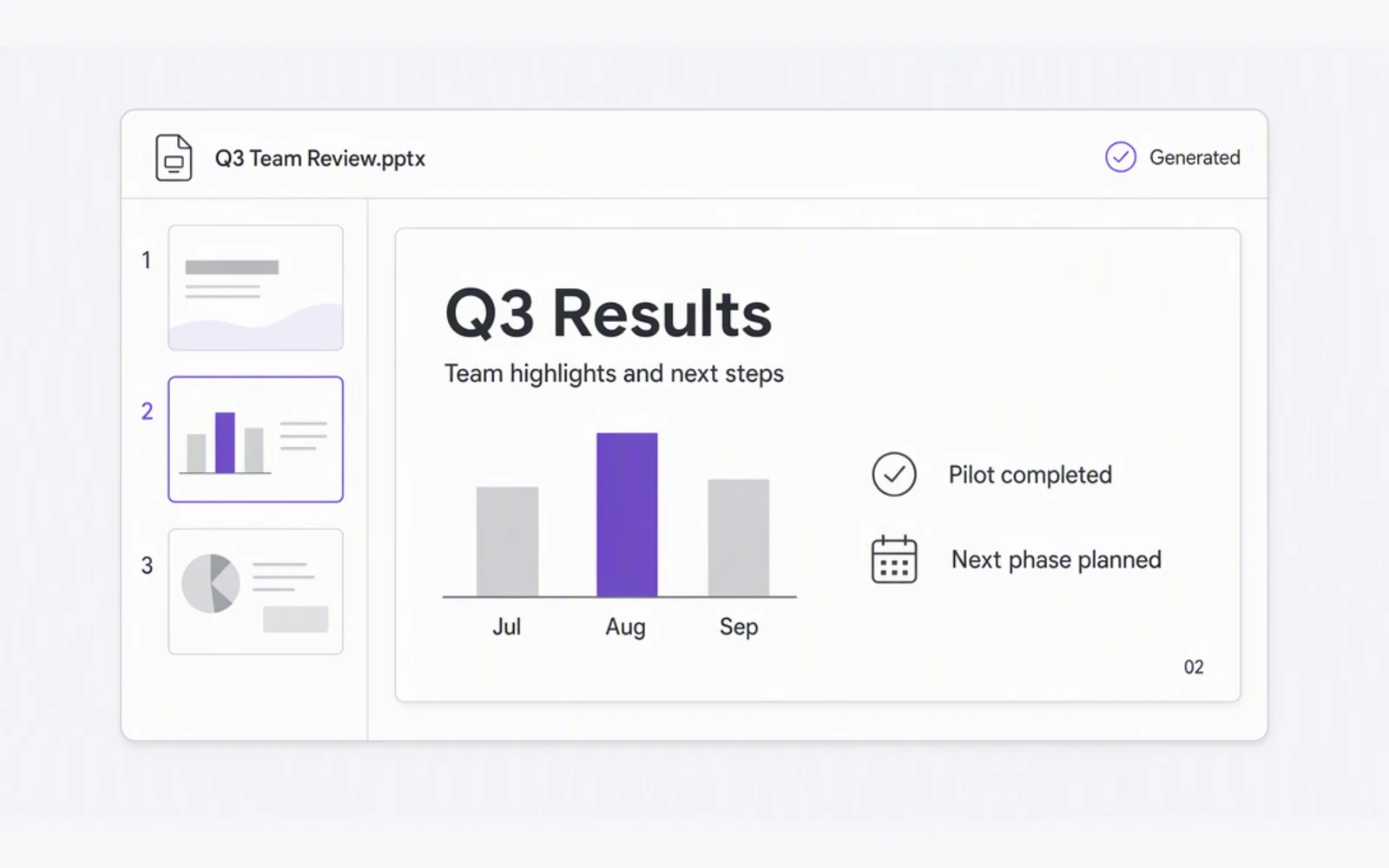
Build a complete deck that follows the outline you approved, with layouts and visuals for each page.
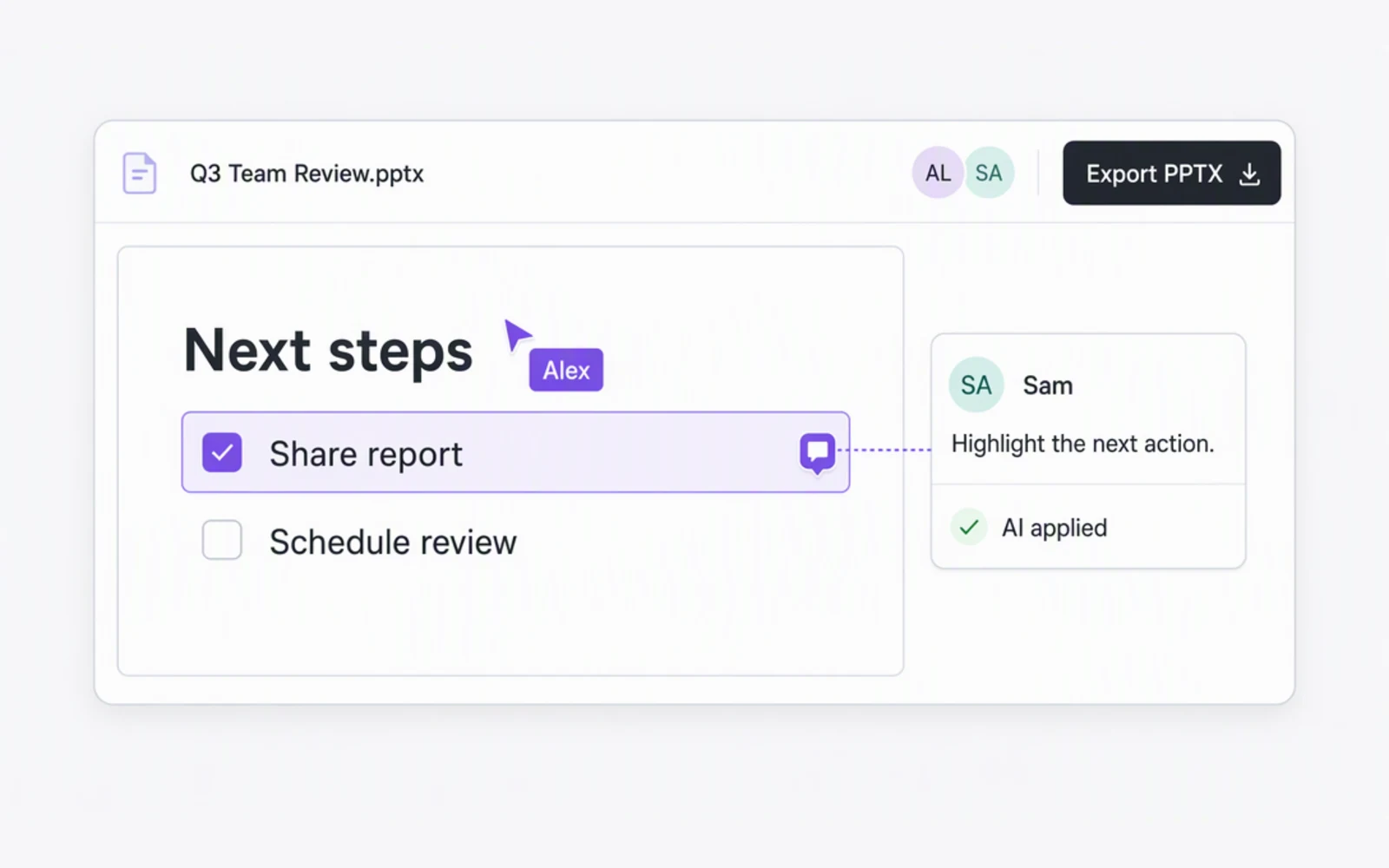
Edit slides together with teammates, or leave a comment and let AI apply the change. Export or share your deck when it is ready.
Converge Work AI Slides is an AI slides generator built into the Converge Work workspace. It turns your prompts, uploaded files, and the sources your team shares in a project into complete, editable presentations. You review a detailed outline before any slide is built, then refine the deck with your teammates and AI.
Start with a topic, a file, or your project sources. Converge Work drafts a slide-by-slide outline for you to review. Once you approve it, it builds the full deck with layouts and visuals. You can then edit any slide, leave comments for AI to apply, and export when you are ready.
Look for a tool that works from your own materials, lets you shape the structure before design, supports teamwork, and gives you slides you can keep editing. Converge Work is built around these needs, with shared project sources, outline-first generation, team editing with AI comments, and polish for existing decks.
ChatGPT works well when one person drafts a deck in a single chat. Converge Work is built for teams. Everyone adds sources to a shared project, and you can reuse those sources and past work for your next deck. Teammates edit the same slides in real time, and anyone can leave a comment for AI to update a page.
Your slides are built from the prompts, files, and project sources you provide, so the content stays close to your own material. You also approve the outline before generation, which helps you catch gaps early. As with any AI tool, check key facts and figures before you present.
Your prompts, files, and project sources are used to create and edit your presentations. Projects are only visible to you and the teammates you invite. To learn how your data is handled, see our Privacy Policy.
No. Converge Work handles layouts, visuals, and formatting on every slide, so you can focus on your story. To change the design, edit any page directly or leave a comment describing what you want.
You can upload PDFs, Word documents, PowerPoint files, and images, or paste a web page or YouTube link. You can also use notes and docs already shared in your Converge Work project. Converge Work reads the content and turns it into a structured outline and presentation.
Yes. Before any slide is built, tell AI in the chat what to change, and it will update the outline for you. Once your slides are generated, you can edit text, layouts, and visuals directly on any slide, or leave a comment and AI will make the change.
Yes. Export your deck as a PPTX file to keep editing in PowerPoint or import it into Google Slides. You can also share a link with your team.
Yes. Use Polish slides to upload an existing deck, such as a monthly review or client template. Converge Work updates the content and polishes the layout while keeping your original structure and branding, so you don’t have to rebuild it from scratch.
Yes. Invite teammates to a shared project where everyone can add sources, edit slides together, and leave comments for AI to apply.
Tell Converge Work who your audience is, what the presentation needs to achieve, and roughly how many slides you want. Attach the files or project sources it should use. Not sure where to start? Pick a built-in prompt, such as Convert file to slides or Polish slides, and adjust it to fit your needs.
Converge Work can create slides in almost any language, including English, Spanish, French, German, Japanese, and Chinese. Write your prompt in the language you want, and your outline and slides will follow it.
Yes, you can start for free at Converge Work. When you need more, paid plans start at $20 per month and include monthly credits that work across Converge products. See the Pricing page for details.
Bring your notes, files, or links, approve the outline, and refine every slide with your team.
Create Slides Now